The GroundZero panel
The panel opens by itself when your project opens. Close it with X and bring it back any time by typing gz() in UEFN's Python bar. Drag its edges to resize it.
While UEFN is still loading your level, the panel says Reading your island. It updates by itself, usually within a minute.
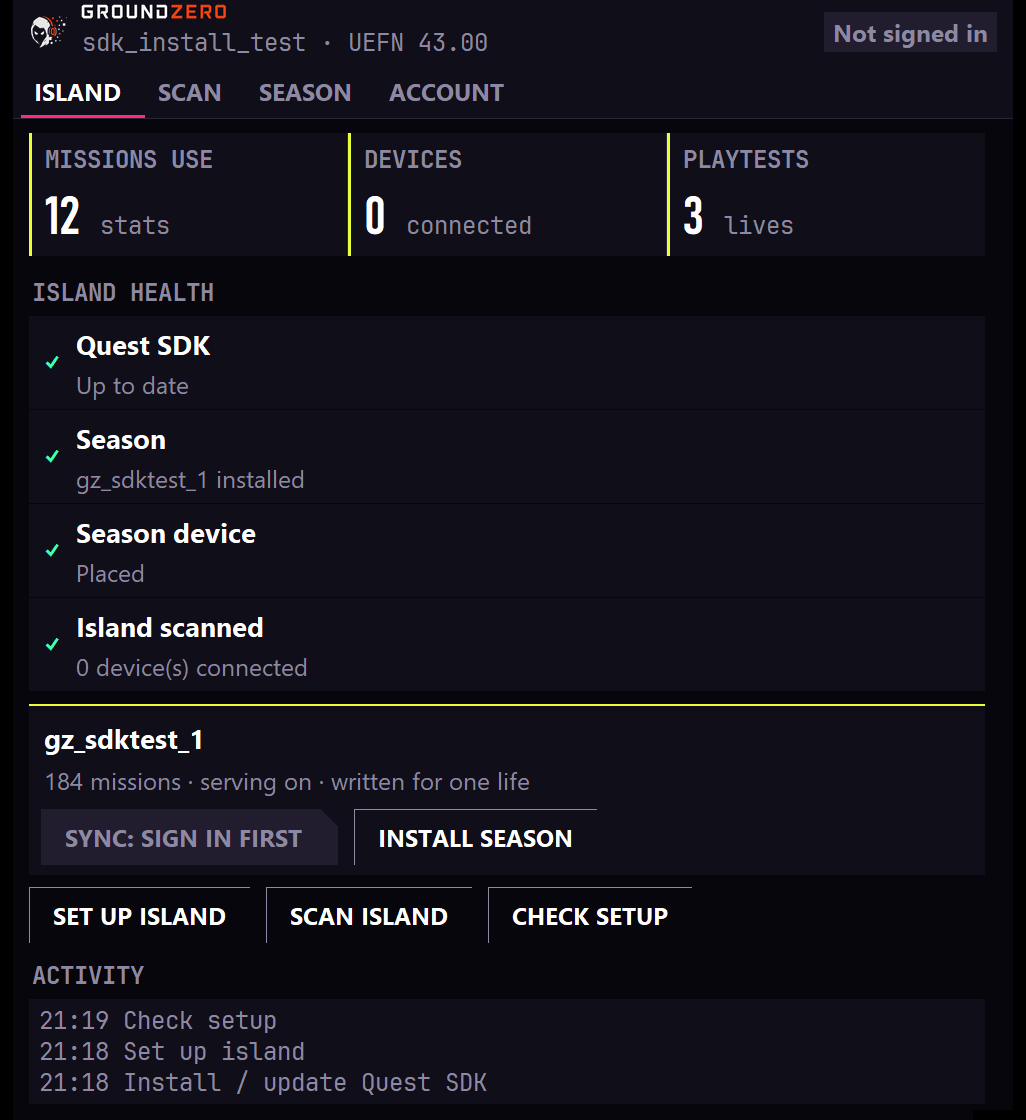
Island
Your island's health at a glance.
- The first time: a setup checklist (Install SDK, Scan, Install your season, Set up island). The season step opens the Season tab, where you install the season made for this island in GroundZero. Each step's button appears when it's your turn. Install SDK offers two buttons, In-game HUD and Quests tab: where players will see their missions (see Season).
- After setup:
- three numbers: stats missions can use, devices connected, and lives played in your test sessions;
- Island health: the Quest SDK, the season, the season device, NPC spawners and the scan, each green, orange or red, with a Fix button where one click solves it;
- your season (name, number of missions) and the buttons Set up island, Scan island and Check setup;
- Activity: what you did in the panel this session.
Check setup opens a report: SDK up to date, season installed, season device placed, Verse builds with no errors.
If Verse isn't building, the Island tab shows only what helps: Verse needs a fix, with Update SDK if an update is the answer, then One last step to reopen. The other buttons are off until then, because they can't read your island. See Keeping GroundZero up to date.
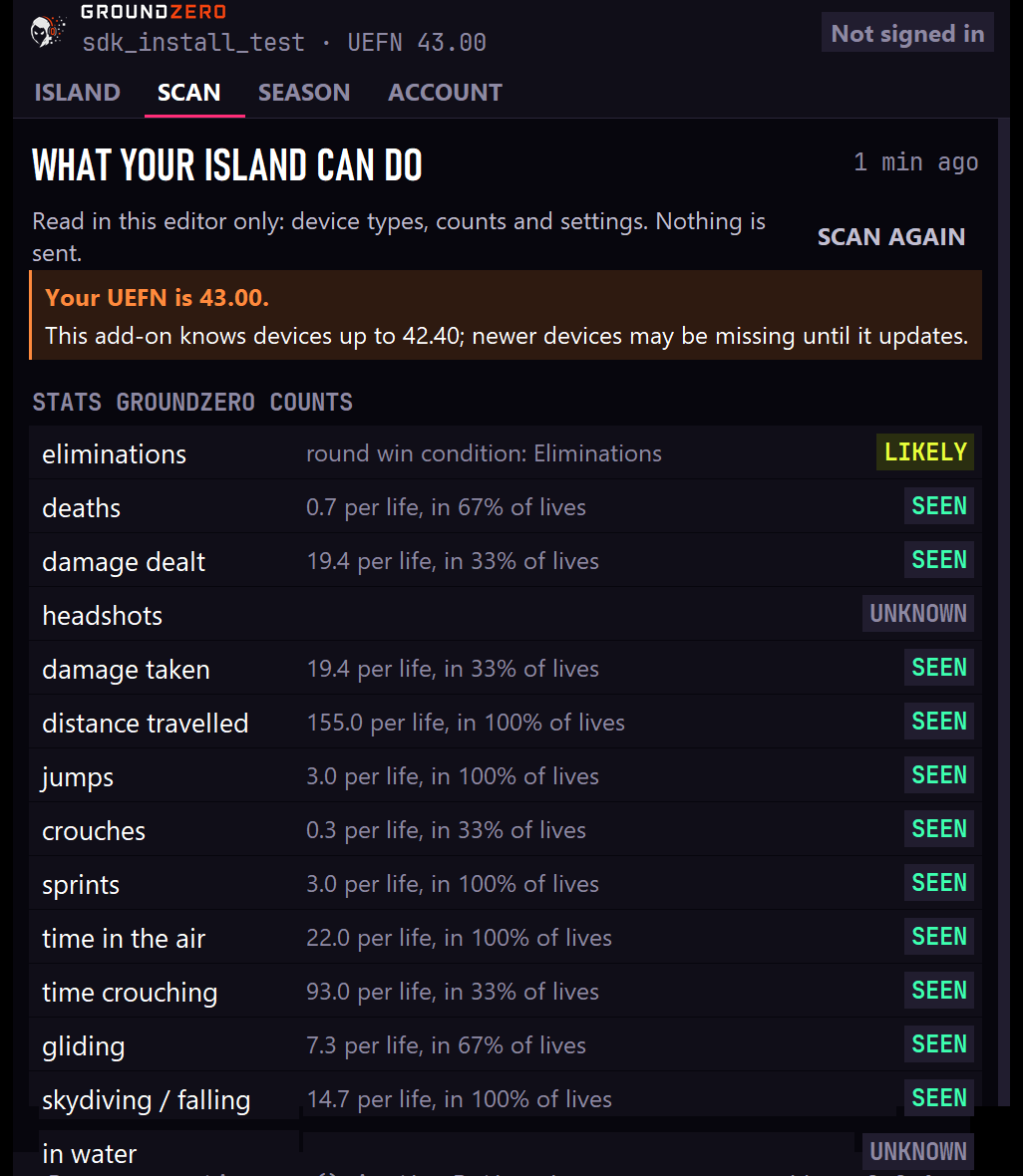
Scan
What your island can do, read in your editor. Nothing is sent.
- Stats GroundZero counts, each with a label:
- Seen: it happened in your own test sessions, with how often (for example "4.5 per life, in 80% of lives"). The strongest evidence.
- Likely: your island's settings allow it (for example sprint is on, glider redeploy is on).
- Unknown: nothing shows it either way yet. Play a few test lives and scan again.
- Unlikely: your settings rule it out (for example sprinting is turned off).
- Island settings: the ones that shape missions (build mode, glider redeploy, rounds, win condition and more).
- Devices missions can use: each device type with what missions can count from it ("Reach checkpoints", "Collect collectibles").
- To confirm on your island: a few device events mean different things on different islands. Tell GroundZero whether each one is an achievement on yours.
- Not used in missions: devices Fortnite doesn't report to Verse (usually older versions; use the newer device if there is one).
- For your season (in the Scan report): players and teams, what kind of island it looks like (racing, NPCs, objectives, economy and so on), what your devices sell, give or need (a key button's key, a capture area's item), and what unlocks what through device wiring (a barrier that opens when a tracker completes). GroundZero uses this so early missions stay reachable and milestones fit your island. Devices are named by type and number, never by the names you gave them; your own text (billboards, HUD messages) and your Verse code are never read.
Press Scan again after you change your island or play test sessions. The panel also refreshes the scan quietly each time the project opens.
Season
The season installed in your island (missions, whether it's written for one life or one round), the season selected for this island in GroundZero with Install season from GroundZero, and, at the bottom, Install from a folder… for a season pack on your PC. Players get a new season when you publish the island update.
Where players see missions. One choice for the whole island:
- In-game HUD (the default): missions on screen while players play, with pop-ups when they progress or complete one.
- Fortnite Quests tab: missions as native Fortnite quests, in the quest log and the pause menu. Players get a pop-up when they complete a mission, not while it progresses.
You choose the first time you install the Quest SDK, and can switch any time with Switch to … in the Season tab. Switching replaces only GroundZero's display files and rebuilds Verse (the panel waits a few seconds first, so UEFN sees the changed files). Your season, its device and players' saved progress stay as they are. The season device's HUD settings, such as pinned missions, colours and pop-ups, only apply to the HUD and may be back to their defaults if you switch away and back. Players see the change once you publish the island update.
Account
Coming: sign in to GroundZero from here (in your browser; your password never goes through UEFN), send your island's scan and install your season with one click. The tab also lists your SDK and add-on versions and when the island was last scanned, and has Remove GroundZero… (Removing GroundZero).