Where missions show: HUD or Quests tab
GroundZero can show your missions in two places. The season is the same either way: the same missions, rotation, progress and resets. Only where players see them changes.
| HUD (default) | Quests tab | |
|---|---|---|
| Where | On screen during play: pinned missions under the minimap, the full list while eliminated, a message when a mission is done | Fortnite's pause menu, Quests tab, in groups named Daily, Weekly and Season. Fortnite also shows the tracked quest on screen as it moves |
| Looks like | GroundZero's design, in your island's colour | Fortnite's own quest screens. Players already know them |
| You can change | How many are pinned, where they sit, your colour, messages on or off (settings) | Nothing on screen: Fortnite draws it |
| Players see all missions | Without opening anything | By opening the pause menu |
| Can publish | Yes | Yes, since Fortnite 43.00 |
| Tested | Yes, many sessions | Yes, on our test island (4 November 2026). Some parts not yet, see below |
Which one to pick
Pick the HUD if:
- you want missions always visible while people play, without opening a menu;
- your island has its own look and you want missions to match it (colour, position);
- your island is fast and players rarely open the pause menu.
Pick the Quests tab if:
- you want missions to feel like part of Fortnite: the same screens players use for Battle Royale quests;
- you want a clean screen: nothing GroundZero draws covers your island;
- your island has slower moments (a lobby, between rounds) when players open the menu.
Not sure? Start with the HUD. It's the default, and switching later doesn't touch your season or your players' progress.
Want your own design? Read missions from Verse and draw them yourself with Epic's Verse UI Kit or your own widgets. See Your own mission UI.
What stays the same
Whichever you pick:
- Progress is saved per player by GroundZero on Fortnite's servers and kept between visits. With the Quests tab, Fortnite doesn't keep quests itself: GroundZero rebuilds each player's quests from their saved progress when they join.
- Daily missions reset at 00:00 UTC, weekly missions on Mondays at 00:00 UTC.
- Each player gets their own missions, and goals can be personal (for example 15 hits for one player, 20 for another). The Quests tab shows each player their own goal.
- The season device and your connected devices are the same. Install, scan and set up are the same (Quickstart).
How the Quests tab shows missions
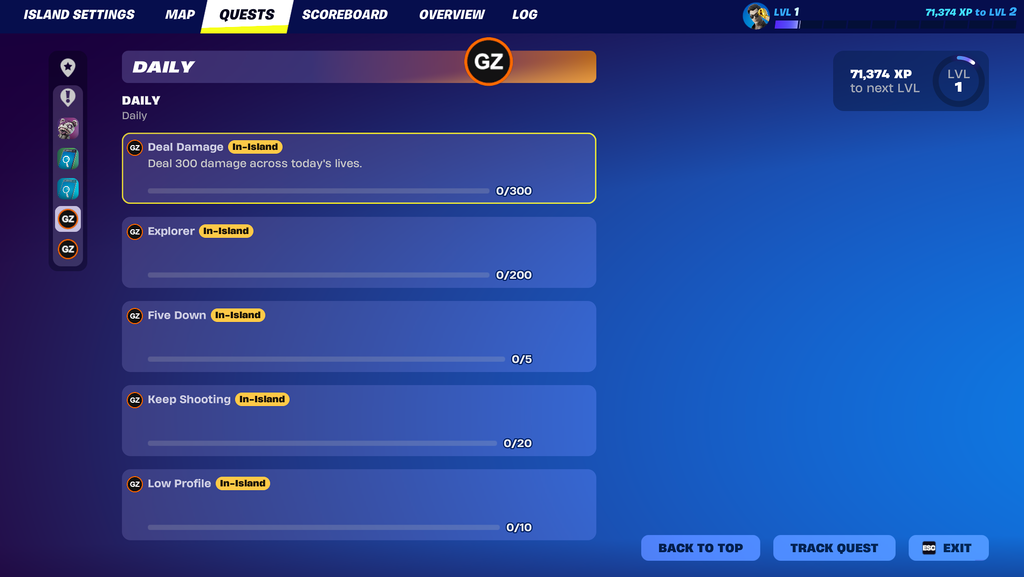
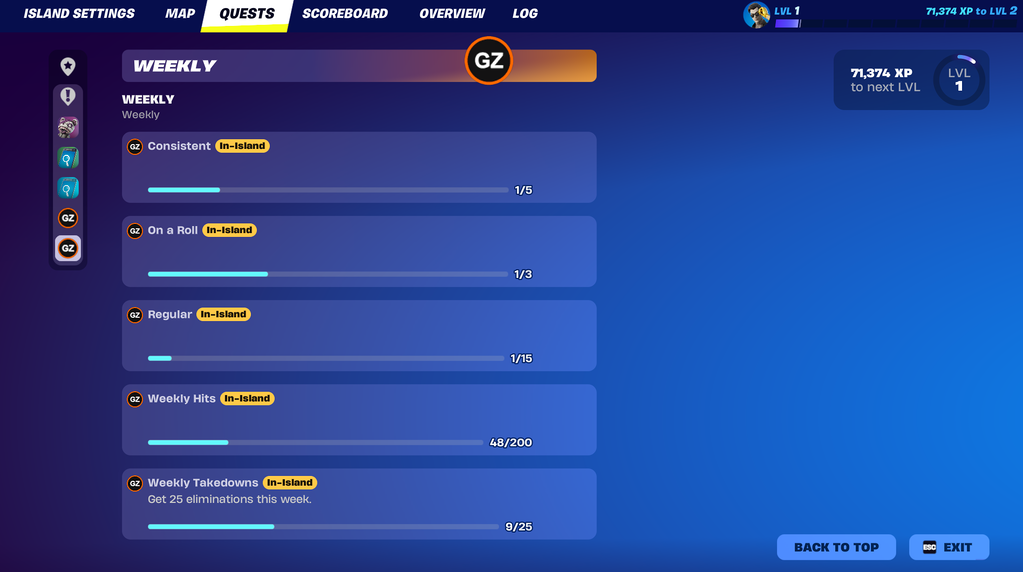
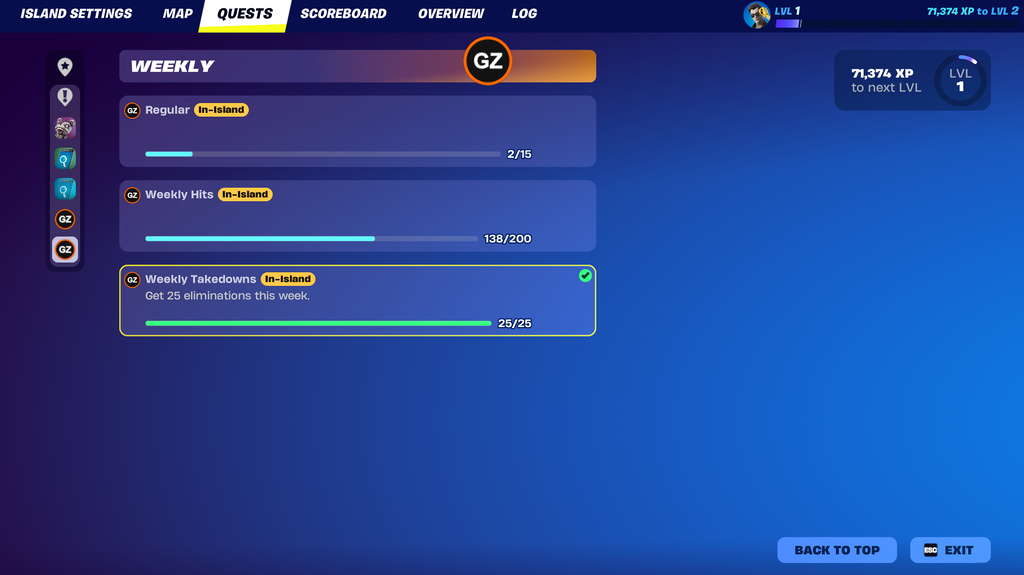
- One group per window in the Quests tab sidebar: Daily, Weekly, Season, each with the GroundZero icon. A group appears only when it has missions.
- Each mission shows its name, an In-Island tag and a progress bar (
X / Y). Fortnite shows the description only on the mission a player selects. - A mission completes when GroundZero decides it is done. Until then the bar stops one short of the goal, so Fortnite never marks a mission done early.
- When a mission rotates out (for example a daily at reset), it is removed from the player's list if they didn't finish it.
From our test island (4 November 2026):
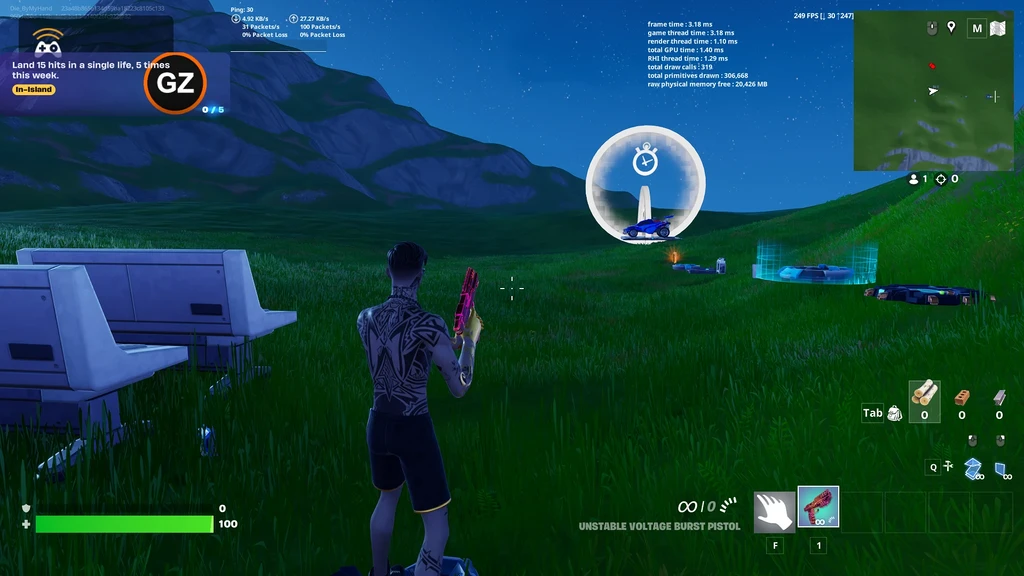
To compare, the HUD: What players see.
Quests tab: what is not tested yet
These work in the code but haven't been played end to end. Use the HUD if you depend on them today.
- Rewards granted when a quest completes (our test season had none).
- The Season group (our test season served no season missions).
- A daily mission being removed when it rotates out at reset.
- A player leaving and rejoining.
- A published island (tests so far were private sessions).
Choosing or switching
You choose when you install the SDK: In-game HUD (the default) or Quests tab. When you update GroundZero later, the panel keeps whichever display you have. To change later, use Switch to … on the panel's Season tab.
Switching in either direction:
- doesn't change your season, your connected devices or players' saved progress;
- needs a Verse build, then an island update to reach players;
- removes the HUD settings from the season device when you move to the Quests tab. Note your values first if you might switch back. They return to their defaults when you go back to the HUD.
Setup steps for each: HUD · Quests tab.